> For the complete documentation index, see [llms.txt](https://enigma23.gitbook.io/arcadetraincontroller/llms.txt). Markdown versions of documentation pages are available by appending `.md` to page URLs; this page is available as [Markdown](https://enigma23.gitbook.io/arcadetraincontroller/track/creating-a-track.md).
# Creating a Track
There are only two components that are required for a working track. A SplineContainer and a TrackPathManager.
It's best to first create an empty game object per track. Helps to keep everything tidy and reposition easier.
### SplineContainer
The SplineContainer is the component needed to create, draw and manipulate splines. Follow the insctructions in the Unity documentation on how to draw and edit a spline - [link](https://docs.unity3d.com/Packages/com.unity.splines@2.8/manual/create-a-spline.html).
First create a SplineContainer and then add some knots to create a spline path.
### Track Visual
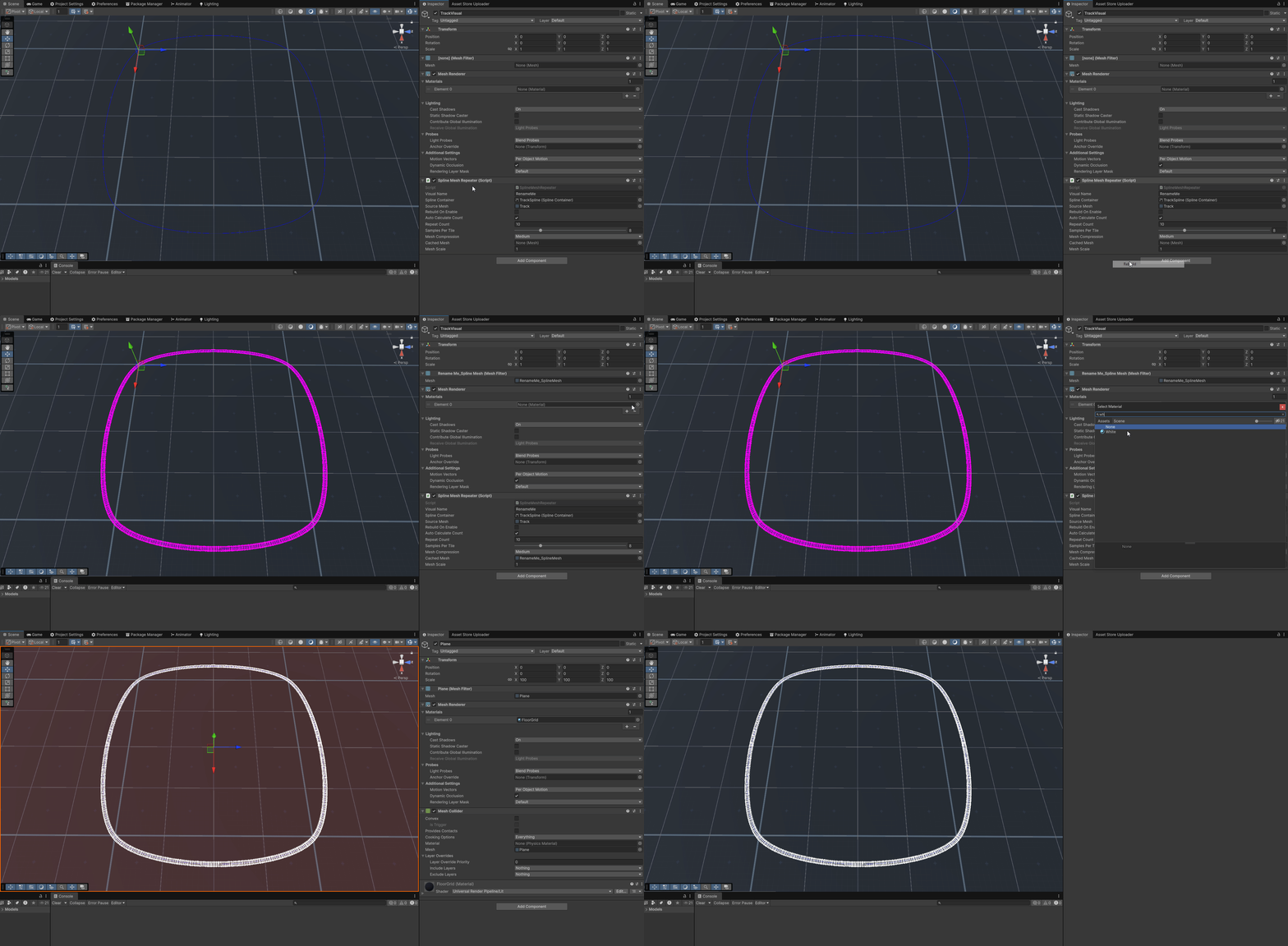
Once your spline is created and lay out how you want, at least for now, it's a good idea to be able to see the track! Use the right mouse create menu to add a 'Track Visual' as a child of the 'TrackSpline' game object.
Change the field 'Visual Name' to something descriptive. Note: if you leave it at RenameMe and then generate any other meshes the the default values, the mesh will be overwritten each time.
The Spline Container should have automatically been assigned, if it hasn't been assign the container you wish to generate a mesh for.
Assign a source mesh. This should be a piece of modular (repeatable) track, a simple one is included with ATC.
Everything else will most often be left at the default values, though you may wish to tweak the 'Samples Per Tile' value.
Now it's time to build the visual. Right mouse click on the component title -> Rebuild. After the mesh is generated you'll want to assign a material to the Mesh Renderer.
Generated meshes are saved in the project window in a new folder next to the active scene. EG: Packages/e23 Arcade Train Controller/Samples/DemoScene/e23.GeneratedMeshes/